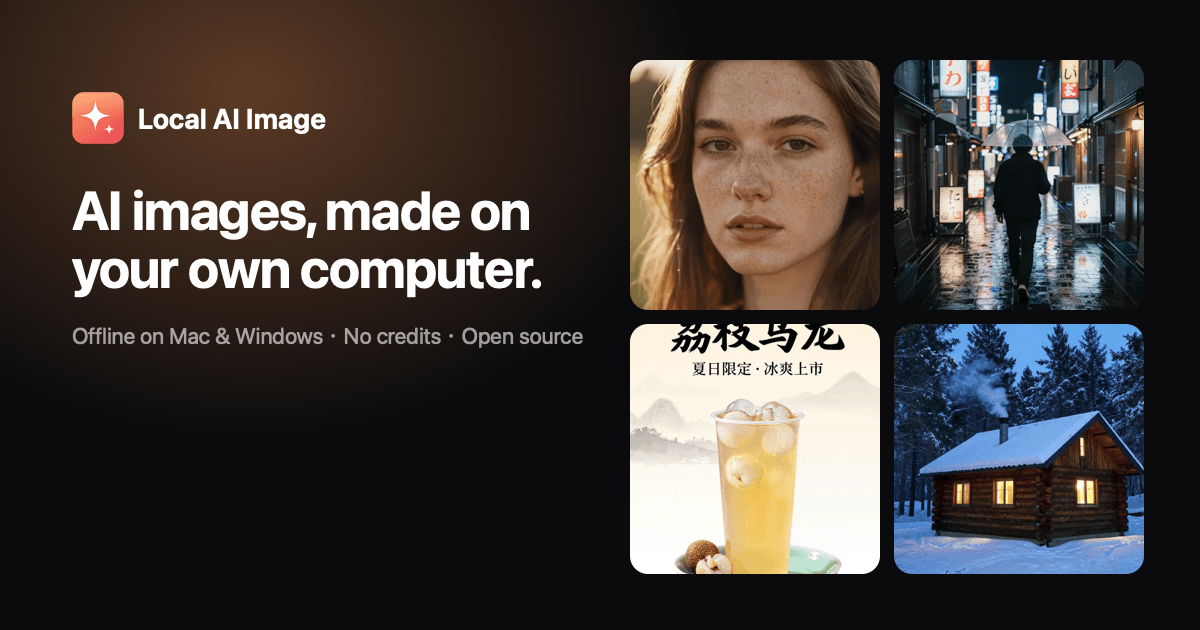
How to Generate and Edit AI Images Offline on a Mac or Windows PC
A practical guide to making and editing AI images entirely on your own computer: which model to pick, how much memory you need, and how to write prompts that work.
Most AI image tools run in the cloud. You type a prompt, it goes to someone else's server, and the picture comes back. That works, but it means your prompts and reference photos leave your machine, you usually need an account, and you often spend credits for every attempt.
Local AI Image takes a different approach. It is a desktop app for macOS (Apple Silicon) and Windows 10/11 (x64) that generates and edits images on your own computer. After you download a model once from inside the app, it works offline. Nothing is uploaded, there is no account, and there are no credits. The app is open source under the Apache-2.0 license.
This guide covers which model to choose, what hardware you need, and how to write prompts that give you the picture you had in mind.
What you need
A 16 GB Apple Silicon Mac is enough for image generation with the default models. A Windows 10 or 11 PC on x64 is also supported.
You also need disk space for the models you choose. Each model is downloaded on demand inside the app, and its license is shown before you download it, so you know what you are agreeing to.
Choosing a model
The app offers three image models. They trade speed, detail and memory against each other.
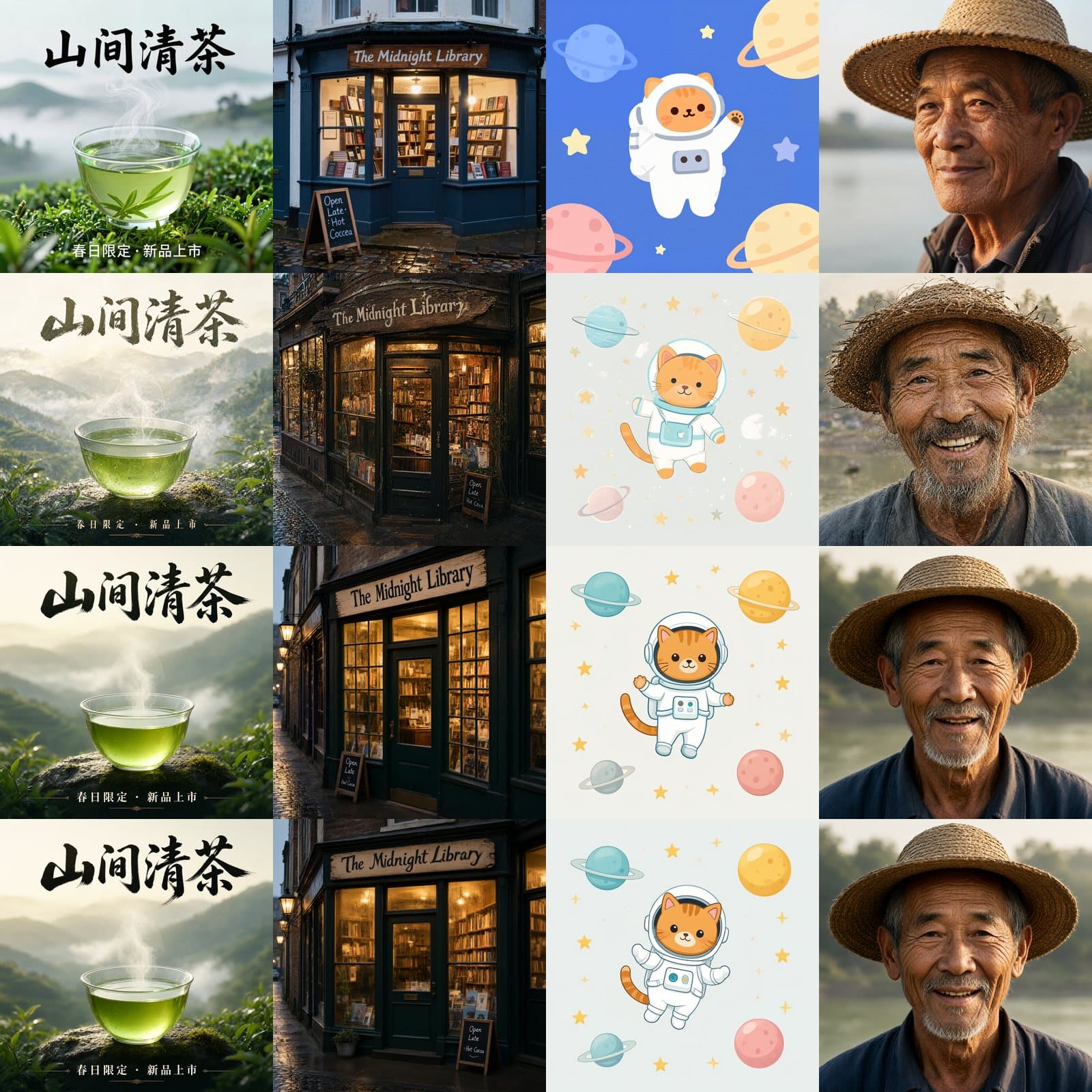
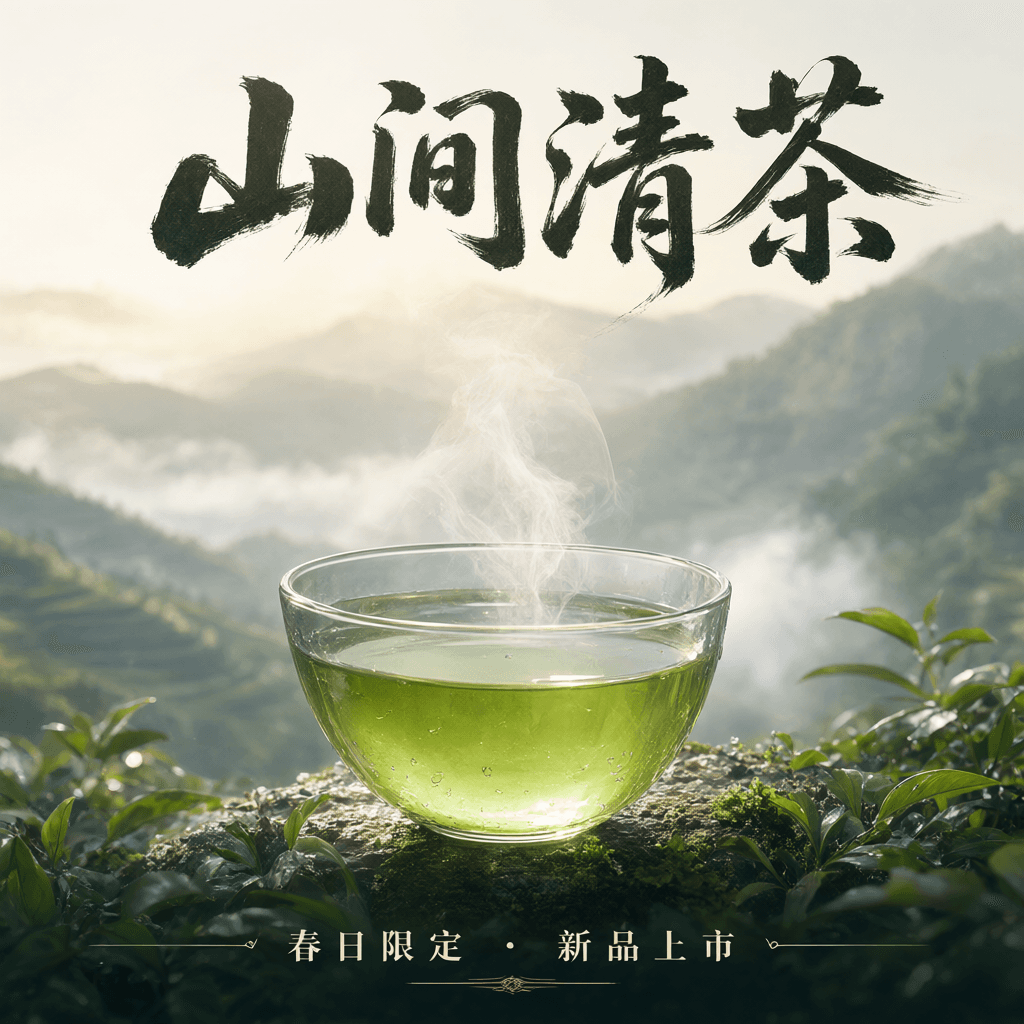
Z-Image-Turbo (5.5 GB, Apache-2.0). This is the one to use when your image contains words. It has the best text rendering of the three, in both Chinese and English. On Apple Silicon it takes about 40 seconds for an image of roughly one megapixel.
FLUX.2 klein 4B (4.3 GB, Apache-2.0). The fastest option, at about 15 seconds per image. It is good for quick drafts and for trying many ideas in a row. It is weaker at lettering, so avoid it for posters or signs.
FLUX.2 klein 9B (8.9 GB, non-commercial license). It produces richer detail and gives the most accurate results when editing an existing image. It needs 24 GB of memory, and its license does not allow commercial use, so check that before using its output in paid work.
A simple rule: draft with klein 4B, use Z-Image-Turbo for anything with text, and switch to klein 9B for detailed work or careful edits if your computer has the memory.
How to generate your first image
- Download the app from this site and install it.
- Open the app and pick a model. The app shows the download size and license, then downloads it once.
- Type a short description of the image you want.
- Optionally press Polish. A local writing assistant expands your short idea into a fuller prompt. You can edit the result before generating.
- Choose a style chip if you want a specific look: photo, illustration, anime, 3D, ink wash, poster or cinematic.
- Pick an aspect ratio: 1:1, 4:3, 3:4, 16:9 or 9:16.
- Click generate. When the image appears, save it, or adjust the prompt and try again.
Editing an existing image
You can also upload a photo or picture and describe the change you want in plain words. A few examples of what works well:
- Change the season: "make it winter, snow on the roofs and trees."
- Restyle it: "turn this photo into a watercolor illustration."
- Rewrite text on a sign: change the shop sign to read "Morning Bakery".
Keep edit instructions focused on one change at a time. If you want three changes, make them in three steps. That way you can keep the good result from each step instead of starting over.
For the most accurate edits, use FLUX.2 klein 9B if your computer has 24 GB of memory or more.
Prompt-writing tips
A good prompt answers a few simple questions. You do not need special syntax, just clear sentences.
Subject. Say what the picture is about and be specific. "An old fisherman mending a net" works better than "a man."
Setting. Where is the subject? "On a wooden pier at a small harbor" gives the model something to build around.
Light. Light changes the mood more than almost anything else. Try "early morning fog," "warm golden-hour light," or "neon light on wet pavement."
Lens or style. For photos, mention framing, such as "close-up portrait, shallow depth of field" or "wide shot from above." For other looks, name the medium: "flat vector illustration," "ink wash painting," "3D clay render." The style chips do the same job if you prefer clicking.
Text in quotes. If the image should contain words, put them in quotation marks and say where they go: a poster with the title "Summer Night Market" at the top. Use Z-Image-Turbo for this. Short phrases render more reliably than long sentences.
A complete example:
A small ramen shop at night on a narrow street, steam rising from the doorway, warm lantern light, rain on the pavement, cinematic wide shot, a red sign above the door that reads "Open Late".
If a result is close but not right, change one part of the prompt at a time to see which words matter.
Why run image generation locally
- Privacy. Prompts, photos and results stay on your computer.
- No credits. Iterate as often as you like.
- Offline. Once models are downloaded, no internet is needed.
FAQ
Do I need an internet connection to use Local AI Image?
Only to download the app and each model the first time. After that, image generation and editing run fully offline.
Which model should I use for images with Chinese or English text?
Use Z-Image-Turbo. It has the best text rendering of the three models. Put the exact words in quotes in your prompt and keep them short.
Can I use the images commercially?
It depends on the model. Z-Image-Turbo and FLUX.2 klein 4B are Apache-2.0. FLUX.2 klein 9B uses a non-commercial license. The app shows each license before you download a model, so check it there.
Author

Categories
More Posts
Uncensored AI Image Generator, Local and Free: Qwen-Image 2.1 Turbo Tested
Looking for an uncensored AI image generator with no filter? Run Qwen-Image 2.1 Turbo locally and free on Mac or Windows. We tested speed, quality and what 'uncensored' really changes.
Qwen Image 2.1 Local Guide: GGUF, ComfyUI, VRAM and Mac
Choose a Qwen Image 2.1 local workflow, check GGUF components and Mac options, and verify real PNG transparency before planning your hardware.
Best Local AI Image Generator in 2026: 6 Offline Apps Compared
The best local AI image generators for Mac and Windows, compared: ComfyUI, Draw Things, Forge, DiffusionBee, mflux and TopLocal Studio. Models, platforms, ease of setup and who each one suits.
Newsletter
Join the community
Subscribe to our newsletter for the latest news and updates